
dsigns guides · Create content
Refine your layout widgets
Arrange cards consistently and choose the details your audience needs to see.

Select and align several cards
Shift-click cards on the canvas or their names in Layers. Use the selection controls to align edges or centres. Distribute spreads three or more cards between the outer cards. Set a gap in design pixels and choose Horizontal gap or Vertical gap for consistent gutters. Locked positions stay fixed. Undo restores each arrangement.
Reuse a style or a whole widget
Select a source card and choose Copy style. Select target cards and choose Paste style. This copies appearance without replacing their content or positions. In Widgets → Saved widget presets, name and save the selected widget to reuse its content and settings for the same customer. In-use media stays protected until the preset is removed.
Choose card and screen backgrounds
Every card and the screen share Transparent, Colour, Image, Video and Webpage / stream backgrounds. Images offer Fit or Fill. Downloaded background videos loop muted. Online backgrounds use their saved fallback. Select square, rounded or pill corners; adjust the radius, padding, colour and opacity. Check contrast over moving backgrounds.
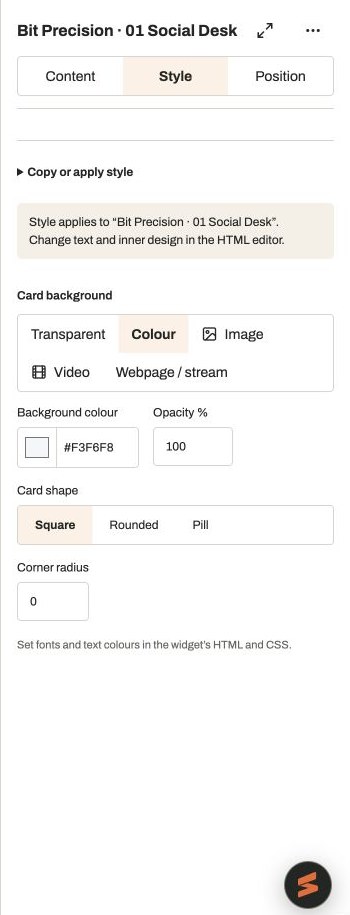
Actual app controlsThe selected widget controls its own appearance. Social caption styling is inside its Content controls. Set the clock and date
Choose digital or analogue, the timezone, 12/24-hour digital time and short, long, numeric or ISO date. Toggle time, date, seconds, timezone and analogue dial numbers. Keep at least one detail visible. Time follows the player clock and selected timezone.
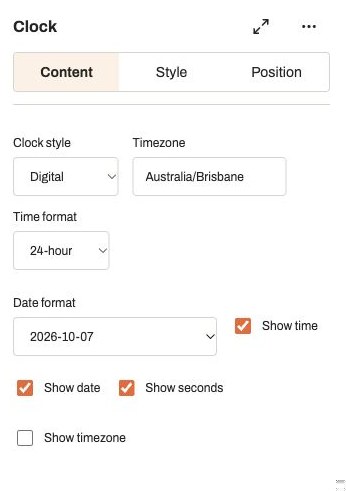
Actual app controlsChoose which parts of the time and date appear in the widget. Find the weather location
Enter a town or city and select Search places, then choose the matching result. The label and coordinates remain editable. Choose Celsius/Fahrenheit, stacked or side-by-side presentation, and visibility of location, icon and conditions. Icons distinguish sun/night, clouds, rain, snow, sleet, fog and thunder without relying on installed emoji fonts. Place search uses OpenStreetMap; weather uses MET Norway.
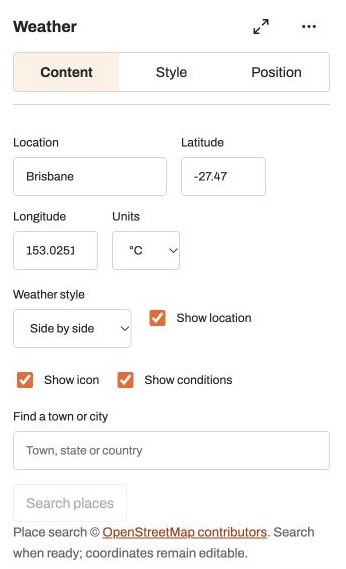
Actual app controlsThis test widget uses Brisbane. Choosing a place fills the label and coordinates. Tune ticker motion
Use a typed list, RSS/Atom feed or public JSON feed. Choose speed, left/right direction, bullet/dash/space separators and the gap between repeated runs. Spacing is measured relative to the text size. The track repeats enough content to cover the region continuously; feed fallback text is used when fresh data cannot be obtained.
Choose countdown units
Select a target date, time and timezone, then show any combination of days, hours, minutes and seconds. Hidden larger units roll into the largest displayed unit: hiding days gives total hours. Keep at least one unit selected. At zero, the finish message stays visible. Ambiguous or skipped daylight-saving times must be changed before publication.
Time each announcement
Set the default duration and optionally enter separate seconds beside each announcement. Move messages with the arrows, preview them with their numbered buttons and choose Cut or Fade. Blank messages are skipped. Reordering keeps a message with its own duration.
Use the remaining widget controls
Notice cards share font, weight, italic, alignment, colour, padding and background controls. QR codes have destination/caption fields, contrast checks, pattern styles and optional static logos; scan the result at its actual viewing distance. Content cards choose media/playlist fit and video settings. Custom HTML cards share the isolated editor and JSON-data contract described in the Custom guide.
Preview and publish
Preview runs clocks, tickers, announcements and media; a random-order playlist reshuffles each loop. Each playlist region advances independently. Save the layout, select it on the player and publish. The website checks the player’s reported capability before sending newer features. Test multiple simultaneous videos and streams on the exact hardware.