dsigns guides · Create content
Work with the Layout assistant
Ask for a starting point or a change to the draft you are editing.
Connect your account’s OpenAI key
An account owner opens Settings → Integrations → AI tools, enters an OpenAI API key in the masked field and chooses Save key. Usage is billed to the OpenAI project that owns that key. Staff use their account’s connection; other customer accounts cannot use it. A master account’s key is only for master-account requests. Keys are encrypted in the database and are not returned to the dashboard or sent to players. Key saved confirms storage; a successful assistant request confirms the provider works.
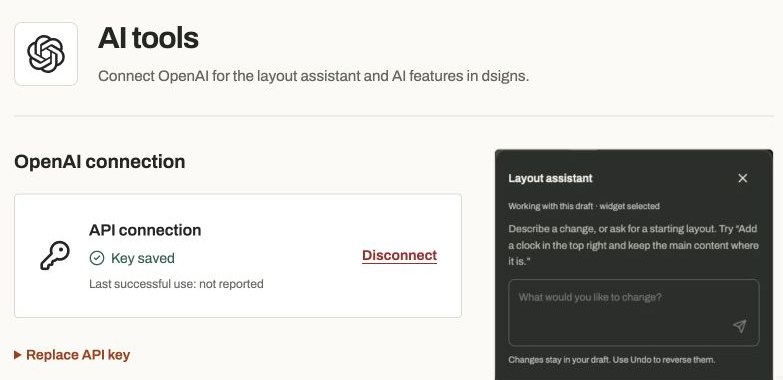
Actual app controlsAccount owners manage their connection here. This example shows the master workspace. Open and move the assistant
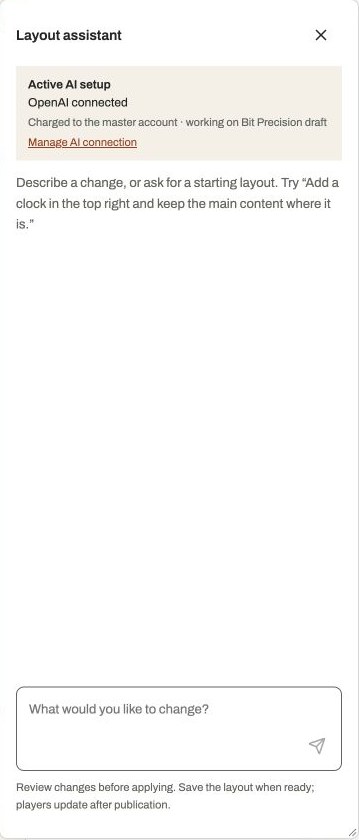
In a layout, click the circular dsigns button to open Layout assistant. Drag the circle to move it away from your work. The panel stays within the window; close it with its X. It has the current draft and selected widget as context, plus references to that customer’s media and playlists. Select a widget first when your request is about that widget.
Actual app controlsThe assistant uses the open draft and selected widget as context. Give it a specific task
Describe the result and what should stay unchanged. For example: “Add a clock in the top right and keep the main content where it is,” or “Create a sidebar for weather and a ticker below the content.” Mention an existing playlist or media name when relevant. Type in the box and use Send or Enter; Shift+Enter adds a new line. The assistant can use existing layout widgets and sources, but does not generate new Canva artwork or publish content to screens.
Review, undo and save
Read its response and inspect the canvas, widget sources and Position/Style settings. Accepted changes stay in the draft. Use Undo to reverse them, then refine the request if needed. If you changed the layout while a request was running, ask again against the latest draft. Save only when you are happy, then publish separately from player settings. Closing or reopening the editor starts a new assistant conversation; it is not a saved chat archive.
Resolve connection errors
If a request fails, your typed prompt is restored for retry. Check that your account has a saved key and that the OpenAI project permits API use and has available billing. Owners can replace the key in Settings → Integrations → AI tools. Disconnect removes it and stops AI features for that account; manual editing, saved layouts, media and player playback continue. Never paste a key into the chat, HTML or a feed URL.