dsigns guides · Create content
Arrange a screen layout
Keep designing in Canva. Use Layouts to position content and live widgets.
Create a layout
Open Layouts → New layout. Give it a name, choose the customer when shown, then pick Full screen, Split screen, Sidebar + ticker or Overlay. Choose landscape or portrait. These are starting arrangements, not separate content files. A layout can contain up to 40 widgets. In the library, search by name or filter by customer. Use Edit to reopen one, Duplicate to make a separate starting copy, or Delete for an unused layout. An assigned layout cannot be deleted until its screen assignment is changed.
Find your way around
The editor opens in its own full-window view; use Layouts in its header to return to the library. The dashboard navigation can also be collapsed from its sidebar. Widgets and Layers share the left sidebar. Search widgets by name, or expand Content, Live widgets and Advanced. Click a widget to add it, or drag it onto the canvas. Select a widget on the canvas or in Layers; its Content, Style and Position settings appear in the inspector beside the canvas (below it on smaller screens). Rename it in the Widget name field so the layer is easy to recognise.
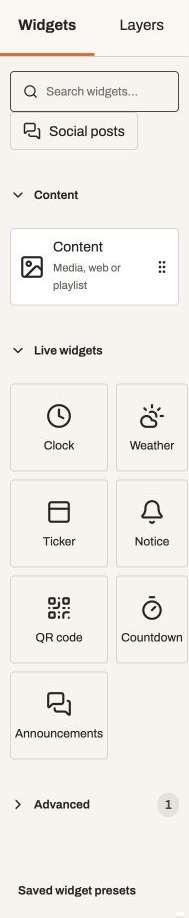
Actual app controlsSearch or expand the widget categories. Content holds your media and playlists. Choose Simple or Advanced
Simple offers a 9 × 9 grid in Position. Drag across cells, or select two opposite corners, to make a card fill that rectangle. Highlighted cells show its current area. Canvas dragging still fits widgets to highlighted preset areas. Advanced lets you drag an existing widget freely and resize from any corner. Turn Snap on for alignment guides. Fit to window brings the canvas into view; the current editor has no manual zoom control. The editor currently reopens in Simple, so switch back to Advanced before moving a custom arrangement. A new widget dragged from the library initially fits the drop area even in Advanced; resize or position it afterwards.
Set exact positions
In Advanced, open Position. Left and Top are distances from the screen’s upper-left corner; Width and Height are percentages of the whole screen. For example, Left 50, Top 0, Width 50, Height 100 covers the right half. Use the six alignment buttons to align or centre against the screen. Turn on Lock position to prevent moving and resizing; content and styling remain editable.
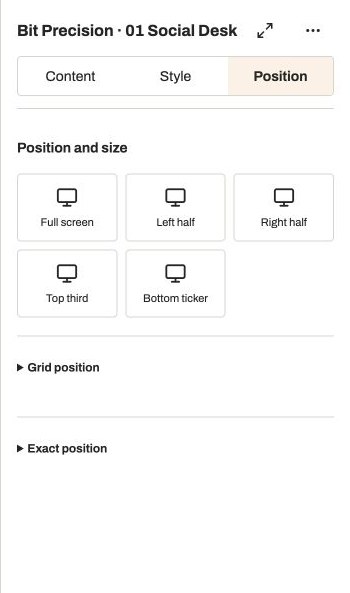
Actual app controlsExpand Grid position or Exact position to set dimensions as percentages of the screen. Change the arrangement or orientation
Use the arrangement menu above the canvas to choose another preset, then review and confirm Apply arrangement. Unlocked widgets move into its areas; extra widgets keep their positions and locked widgets stay put. Existing content sources are retained. Use Screen orientation for landscape 16:9 or portrait 9:16. Check cropping and text after either change. Custom grid rows, nested areas and arbitrary canvas sizes are not offered in the current editor.
Set stacking and visibility
Open Layers: the top row appears in front. Drag rows into order to change the stacking order, also called Z index. Use the eye to hide or show a widget. The lock indicator shows when its position is fixed; change it in Position or Widget options. Right-click a widget, or choose Widget options, for Duplicate, Lock position, Bring to front, Bring forward, Send backward, Send to back, Hide/Show and Delete widget. Hidden widgets remain in the layout but do not play.
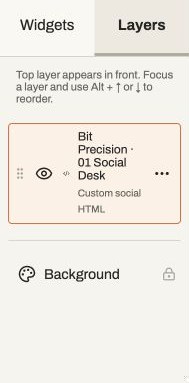
Actual app controlsThe first widget appears in front. This example has one Social posts widget. Choose the screen background
Select Background at the bottom of Layers. Choose Transparent, Colour, Image or Video. The media picker offers search, type filters, sorting, Cards/List and pages. Select a file and choose Use selected file. Fit preserves the full image; Fill covers the screen. Videos loop with sound muted. This background stays behind all widgets. Each card has the same choices under Style → Card background. Choose Transparent to reveal lower layers, including through transparent PNG artwork.
Add content and style the widgets
Content widgets can each show an image, video, reusable playlist or the screen’s scheduled playlist. You can have more than one, and their playback runs independently. See every widget and its controls, including fonts, colours, branded QR codes, countdowns and rotating announcements. For live feeds or JavaScript, follow Ticker feeds and custom HTML.
Undo and preview
Use Undo and Redo in the header, or Ctrl/Cmd+Z and Ctrl/Cmd+Shift+Z while focus is outside a text field. Ctrl/Cmd+D duplicates the selected widget; Delete or Backspace removes it. In Advanced, arrow keys move an unlocked widget by 0.5 percentage points, or 5 with Shift. Close the options menu before nudging. Compact windows hide the Undo/Redo buttons, but shortcuts still work. Preview plays the current draft; each playlist region advances independently. HTML changes need to be saved before they refresh.
Save the draft
Choose Save layout. Saving does not change a live screen. If another edit has already been saved, reload the latest draft instead of overwriting it. Unsaved changes can be recovered in the same browser tab; an older recovered draft becomes a separate layout. This recovery is not a replacement for Save. The floating Layout assistant can suggest and apply draft changes that you can undo.
Assign it to a screen
Open a player’s screen settings. Choose Layout, select the saved layout, save the screen settings, then choose Publish content. Each screen can use its own layout. The publication includes a saved copy of the layout, media and playlists. To change a live layout later, save your edits and publish each affected player again. A saved player preview uses saved content; Screen playlist widgets need an assigned player to resolve their playlist and schedule.
Return to fullscreen or start a device trial
Choose Fullscreen in screen settings, save and publish to use the normal image/video playlist without layout widgets. The layout selection is retained for later. Imported PDF and PowerPoint pages also work as a fullscreen playlist. For layout trials, install the current manual layout build for your platform from Downloads. Automatic desktop updates and manual layout builds are separate release channels. BrightSign remains an administrator-managed SD-card pilot. Publication checks the player’s reported capability; a restart alone does not install a newer build. Physical playback, offline restart and long-run checks remain specific to your hardware.