
dsigns guides · Publish
Build a playlist
A few favourites, on repeat.
Three ways to use your content
 Fullscreen playlistA repeating loop fills the screen. Schedules can choose a different playlist.View guide →
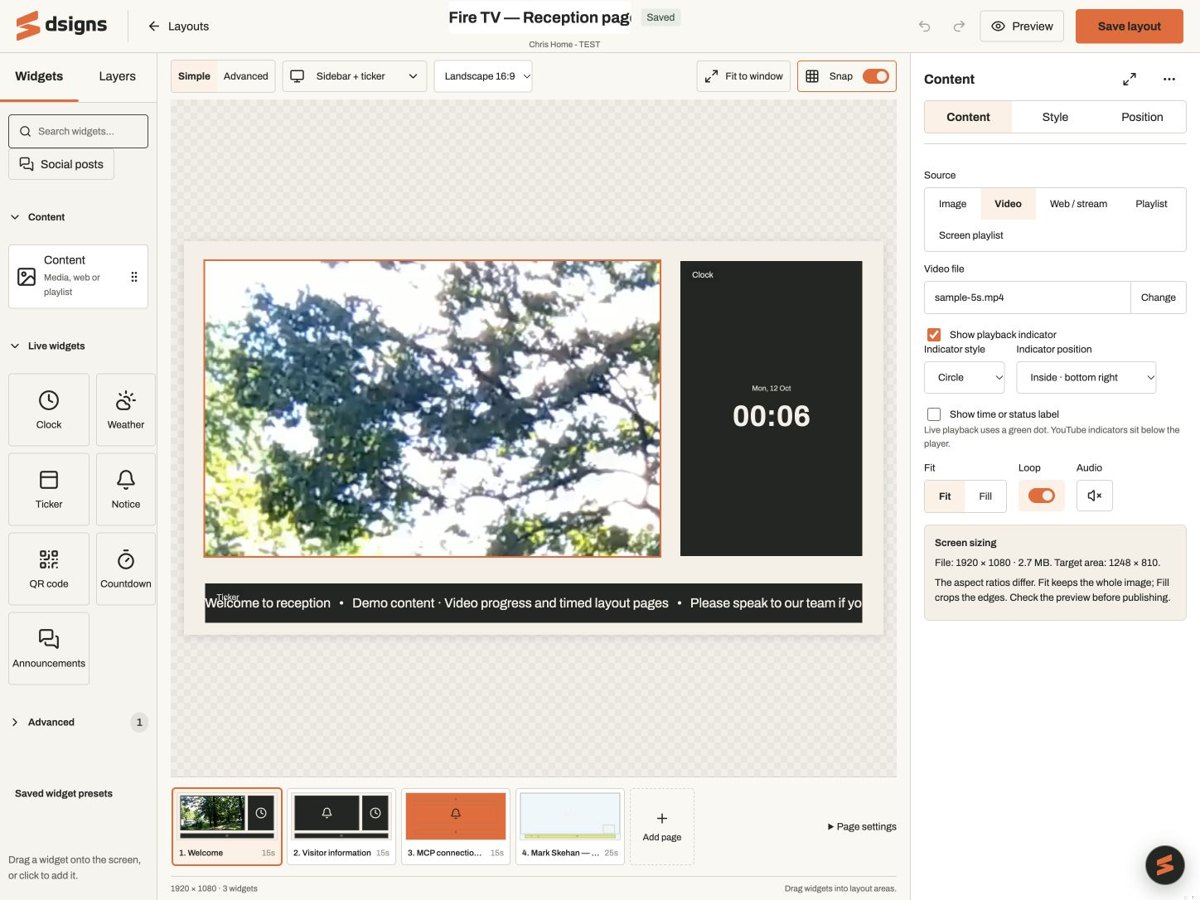 Layout with Screen playlistA scheduled playlist plays inside a region alongside your other widgets.View guide →
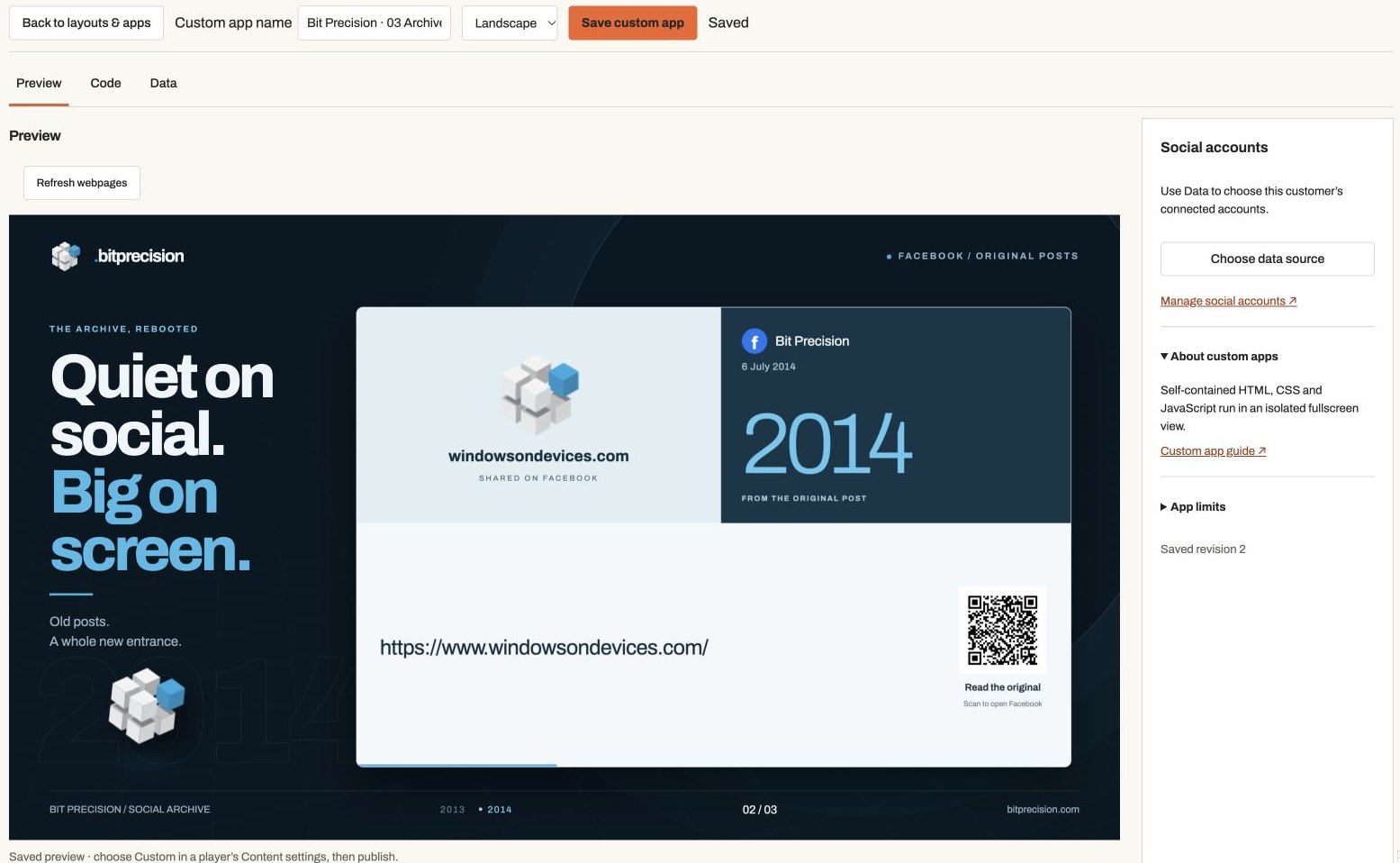 Own content or custom appWidgets and code choose their content. The normal screen schedule does not replace it.View guide →
Bring in your content
Upload images and videos in Media, or save a design to your media library from Canva. Wait for each upload to finish.
Create a playlist
Open Playlists → Add playlist. Give it a useful name and choose the customer when shown. Select Add media, then Add beside each file you want.
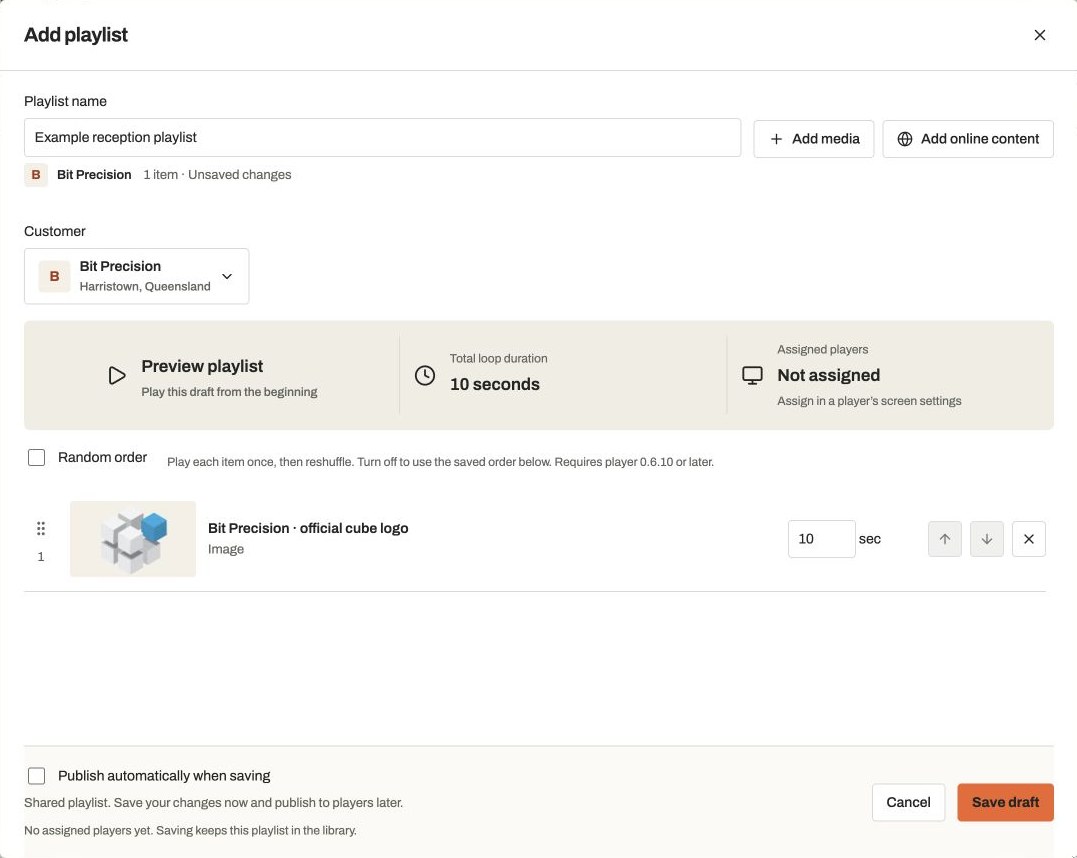
Actual app controlsEarlier editor view using the Bit Precision logo; no player is assigned. The publish checkbox now sits above the save buttons and starts on. Put it in order
Use the up and down arrows to set the saved order, or turn on Random order to play each item once before reshuffling each loop. Random order needs player 0.6.10 or later. Set how long each image stays on screen; the default is ten seconds. Videos play to the end. Publish automatically when saving is on by default above the save buttons. Review the affected players, then choose Save and publish. To keep your changes as a draft, clear the checkbox and choose Save draft.
Assign it and publish
Open the player and choose the playlist for its screen, or set it as the group’s default. Save and select Publish content for each affected player. The playlist repeats outside scheduled overrides.