dsigns guides · Connect accounts
Publish from Canva
Design in Canva. Send to your screens from there.
Use your own Canva account
Sign in to your own Canva account and open your design. Choose Share → See all → dsigns. The app is still a pilot and needs separate Canva access; accepting a dsigns invitation does not unlock it. If dsigns is missing, ask your administrator about pilot access. You can also download your design and upload it in dsigns Media.
Connect once with your dsigns login
First accept your team invitation: sign in to dsigns with the invited email address, then choose Accept invitation on Your account. Back in Canva, choose Connect to dsigns, sign in if asked, check the customer name and approve access. Use your own login; you do not need your administrator’s password or an API key. Your connection sees only your customer’s destinations. Master users can choose any customer. A screen needs its setup published in dsigns before it appears; choose Refresh destinations afterwards.
Choose what to send
Choose Image or Video. The pilot accepts one PNG page up to 8 MiB or an MP4 up to 32 MiB. For a larger export, download it from Canva and use the dashboard’s Media upload.
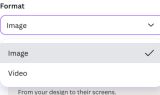
Actual app controlsChoose the export format for your design. Pick where it goes
Choose TVs and screens, Existing playlist or Media library only. Library-only saves the file without changing a screen. For a playlist, choose whether to save a draft or add and publish to its players.
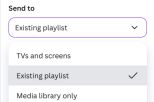
Actual app controlsThree destinations, all inside Canva. Choose when and how it plays
For screens, choose Override to show this design in place of usual content, or Add to queue to include it in the loop. Choose today, a duration or the available schedule controls. Review the customer, screens and end time before publishing. Temporary actions end automatically and the usual content resumes.
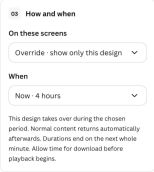
Actual app controlsExample: a four-hour override, then the usual content returns. Check the result
Wait for export and publishing to finish, then check the actual screen. An offline player receives changes when it reconnects. Manage or cancel Canva screen actions in the player’s Screen actions. Editing the original design later does not update dsigns automatically; send it again when ready.
Disconnect whenever you need
In dsigns, open Settings → Integrations → Canva, find Your connection and select Disconnect. Screen managers manage their own connections, customer owners manage their customer’s connections, and the master can manage all customers. Disconnecting stops future imports and publishing through that connection. Imported files, playlists and published schedules remain; stop a screen action separately to end it. To reconnect, open dsigns in Canva and approve access again.