
dsigns guides · Create content
Cycle through pages in a layout
Give each page its own widgets, background and duration, then loop or hold the last page.
Illustrative page sequence. Set durations to suit your content, then loop or hold the final page.
Start with the current page
Open a layout. Its existing design is Page 1. The page strip sits below the canvas; selecting a page changes the widgets and background you are editing. Orientation and screen size apply to the whole layout.
Add and arrange pages
Choose Add page for a blank page or Duplicate page to reuse the current design. Open Page settings to name it, duplicate it or move it earlier/later. Each layout supports up to 12 pages with up to 40 widgets per page, within the saved document size limit. Delete page removes that page’s widgets; Undo restores it. The final page cannot be deleted.
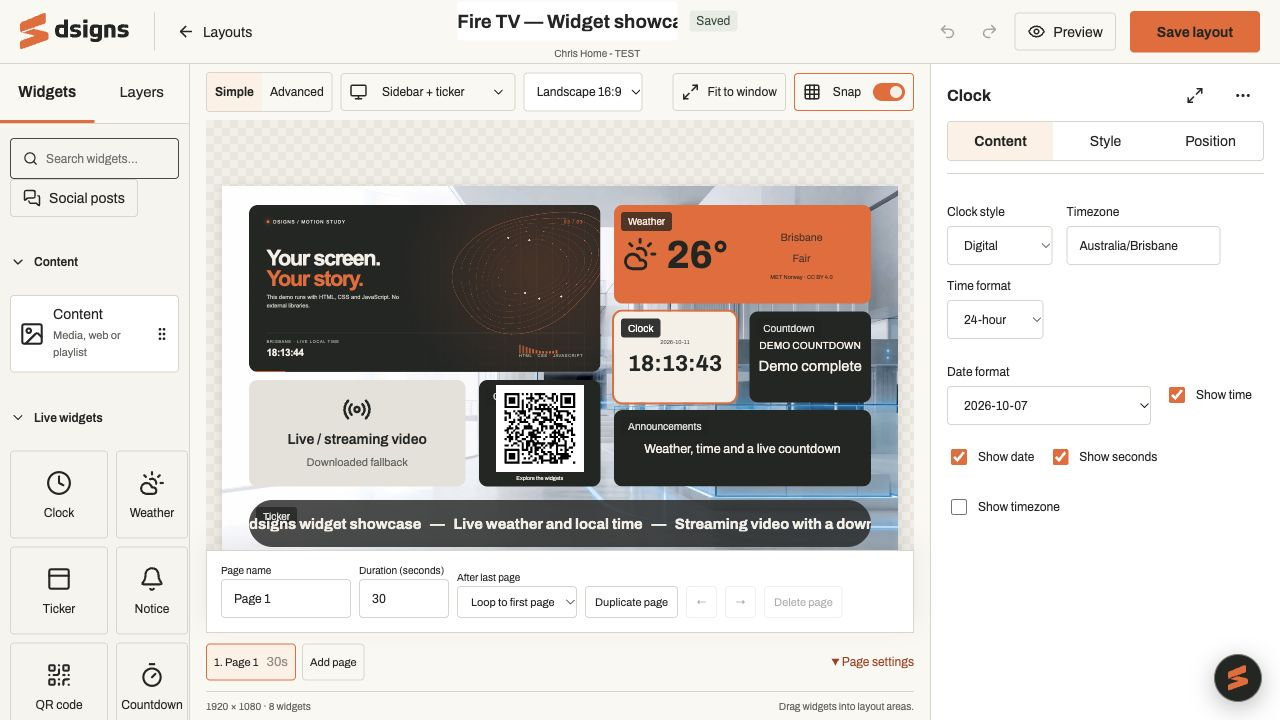
Actual app controlsThis test layout has one page. Page settings controls its name, duration and what happens at the end. Set the playback time
Open Page settings and set each page’s duration from 5 seconds to 24 hours. Choose Loop to first page or Hold last page. A timed page change can interrupt a video or playlist; make the page long enough for the content you want shown. Returning to a page restarts its media and widget timers.
Preview the sequence
Choose Preview to play all pages. Pause pages or step with Next page to inspect a design. Refresh webpages reloads online pages in the browser preview. Only the active page runs its widgets; other pages’ downloaded media is kept ready in the player cache.
Save and publish
Save the layout, select it in a player’s Content settings and publish. Install the current manual layout build and wait for a check-in before publishing pages or advanced webpage settings. Test the timing, page changes and offline content on each player model. Screen playlist widgets follow the assigned playlist and schedule on any page.