dsigns guides · Start
Choose what plays on your screen
Use downloaded files, online sources or a custom application, with a clear plan for offline playback.
| Content | Audio | When offline | Player requirement |
|---|---|---|---|
| Images & document pages | None | Downloaded files keep playing. | Supported fullscreen or layout player |
| Downloaded video | Optional; screen volume applies | Downloaded files keep playing. | Supported codec; MP4/WebM in layouts |
| Webpages & streams | Depends on source; autoplay may mute | Downloaded fallback or skip. | Current composition-capable build |
| Social posts | Provider playback is muted | No offline provider media; text expires within one hour. | Social capability 8; TikTok capability 9 |
| Custom app | Only supported inline behaviour | Self-contained code continues; connected data may expire. | Current layout-capable build |
Choose Fullscreen, Layout or Custom
Open Players → Content → Change playback mode. Fullscreen plays one playlist item at a time. Layout combines independent cards over a screen background. Custom runs one self-contained HTML application across the screen. Save the assignment, then publish.
Reuse your files and document pages
Upload images and videos in Media. Import PDF, PPT or PPTX to turn selected pages into images and an optional playlist. Document pages work fullscreen, inside a Content card or as an image background. PowerPoint animations, transitions, audio and embedded videos are not retained by page import. Transparent PNGs keep their alpha channel; choose a transparent card background to reveal lower layers.
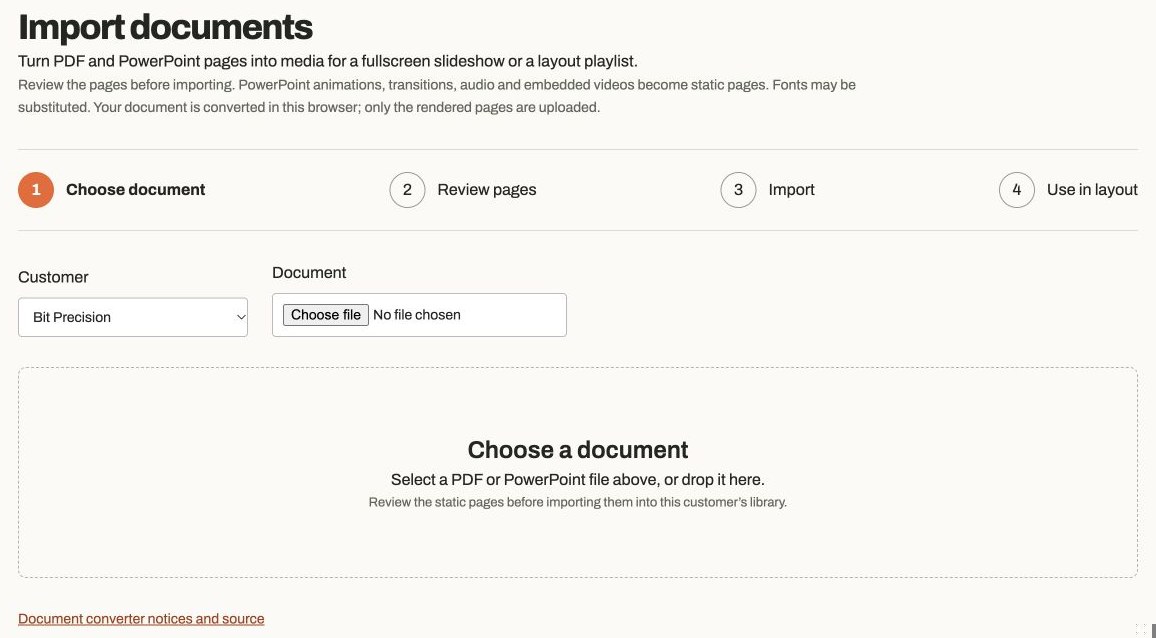
Actual app controlsDocument pages become reusable images for fullscreen playlists and layout cards. Add a webpage or online video
In Media or a playlist editor, choose Add online content. Choose the customer, name, source type and public HTTPS URL. YouTube accepts individual video URLs, including live-video URLs. Direct streams support HLS (.m3u8), MP4 and WebM. RTSP, RTMP, DRM and sources requiring authentication are outside this release.
Choose the offline action
Choose Hide widget / skip playlist item or Show downloaded fallback. The fallback picker uses your existing image/video library. Publication includes that file in the player’s verified local cache. An outage hides a standalone online region or advances a playlist; if no item can play, the region waits before retrying. A fallback video loops muted. Remote webpages and streams are not downloaded for offline use.
Build a fullscreen playlist
Add online entries through the normal media picker and use its Online filter. Set a duration for each webpage or stream, then mix them with files and document pages. Online videos advance at that duration or when playback ends. Playlists with online entries use the composition renderer, so their downloaded videos need MP4 or WebM rather than desktop-only containers such as AVI or MKV.
Place online content in a layout
Create missing items directly in the layout picker: choose Upload files for images/videos or Add online content for online content. The playlist picker also offers New playlist. Import PDF / PowerPoint opens the converter in a separate tab with the customer selected; your layout stays open and its picker refreshes after import. Add a Content widget and choose Web / stream, or choose a playlist that contains online entries. Screen and card backgrounds use their existing Webpage / stream option. Their saved offline action still applies. Use a transparent card to show a screen background below it.
Choose a playback indicator
Enable Show playback indicator on a layout Content card or in the player’s Fullscreen settings. Screen and card backgrounds have their own switch. Choose a small Circle or Thin bar, inside the bottom-right corner or attached below the item. Time and status labels are off by default. Downloaded videos show their playback position; timed images and webpages show their item duration. Live playback uses a green dot, with an optional Live label. Loading and fallback use a neutral indicator. Mark YouTube broadcasts as live when adding them; YouTube indicators always sit below the player. Progress uses the composition player, so fullscreen downloaded videos need MP4 or WebM.
Keep YouTube visible
Use YouTube fullscreen or in one unobscured widget. Its player needs at least 200 × 200 design pixels, square corners and no cards overlapping above it; do not use it as a background. Preview at the final display size. Trial playback reserves a separate band for its branding. Autoplay is muted. YouTube controls embedding, advertising, regional availability and live-video access. Its embedded-player requirements still apply.
Check webpages and streams on the player
Some websites block embedding through their security headers. A browser cannot reliably distinguish every blocked frame from a loaded page. For a page you control, enable Require a ready message and send
parent.postMessage({type: "dsigns:ready"}, "*")after loading; otherwise use preview and a physical check. HLS servers need CORS on playlists and segments. Connection checks, playback errors and timeouts activate fallback, but cannot detect every problem inside an external page.Publish, disconnect and check recovery
Install a current manual build and wait for its check-in before publishing these features. Confirm the content is downloaded, then test normal playback, loss of internet, fallback/skip and reconnection on your model. A successful compile or browser preview does not verify a physical display, codec or audio path. Google TV, other Android TVs, desktop PCs and BrightSign need their own hardware checks.