
dsigns guides · Publish
Schedule your content
The right content at the right time.
Three ways to use your content
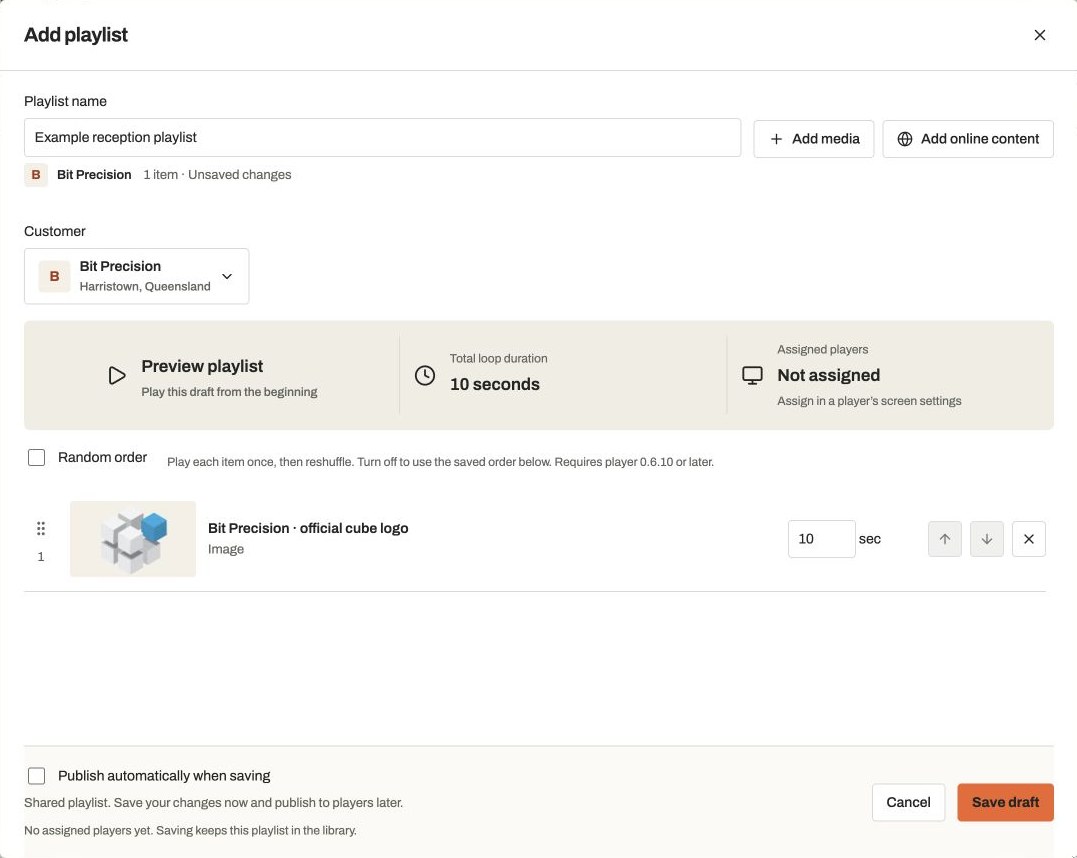 Fullscreen playlistA repeating loop fills the screen. Schedules can choose a different playlist.View guide →
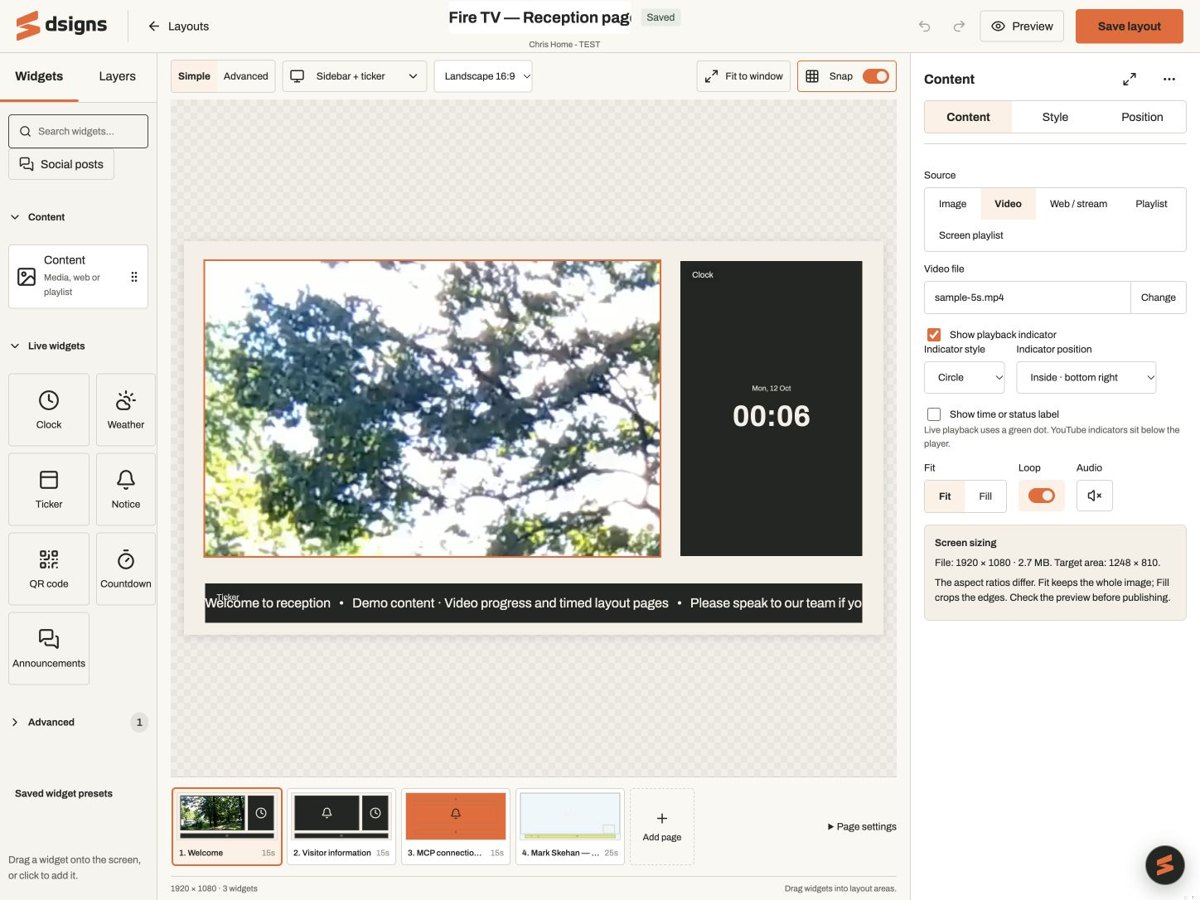 Layout with Screen playlistA scheduled playlist plays inside a region alongside your other widgets.View guide →
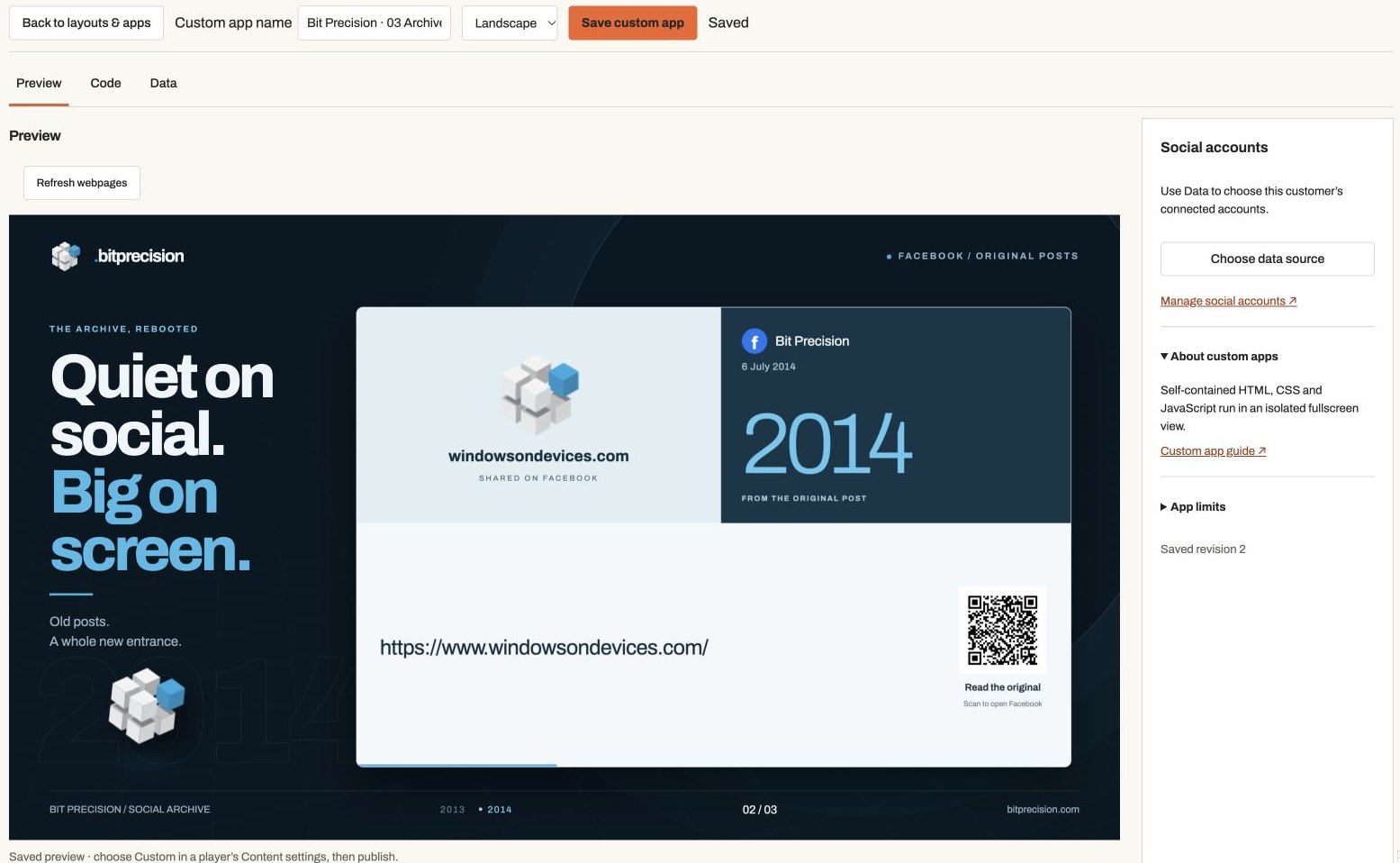 Own content or custom appWidgets and code choose their content. The normal screen schedule does not replace it.View guide →
Choose the screen
Open a player in Players, select its Schedule tab and choose the screen. Check the timezone shown; it comes from the player’s group.
Add a time slot
Select an empty time on the calendar or Add time slot. Give the schedule a name and choose a playlist.
Set the days and times
Choose the weekdays, start time and end time. Use Campaign dates to limit the first and last day. An end time of 00:00 means midnight. For a slot that crosses midnight, select Continue into next day; saving creates the two linked-day portions. Campaign start and end dates are inclusive. Avoid overlapping slots.
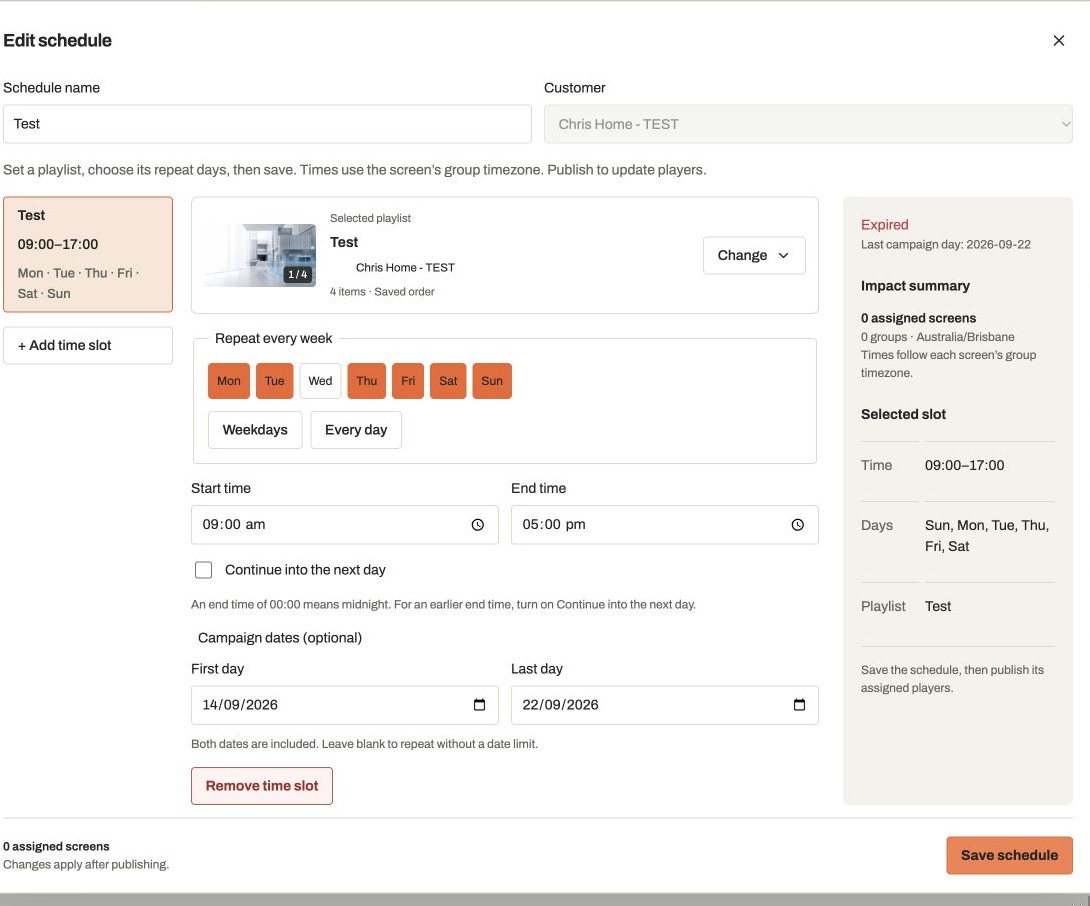
Actual app controlsAn existing test schedule. Choose the days, times and content for your screen. Save, review and publish
Select Save schedule, check the calendar and choose Publish content. A saved calendar is a preview, not confirmation of live playback. Editing a shared schedule affects other screens using it when published.
Check what happens afterwards
Outside the scheduled hours, the screen uses its default playlist. Keep a default assigned so there is content to return to. For a temporary single-design takeover, use the screen options in Canva.