dsigns guides · Publish
Update what’s playing
Publish changes and check your screens.
Three ways to use your content
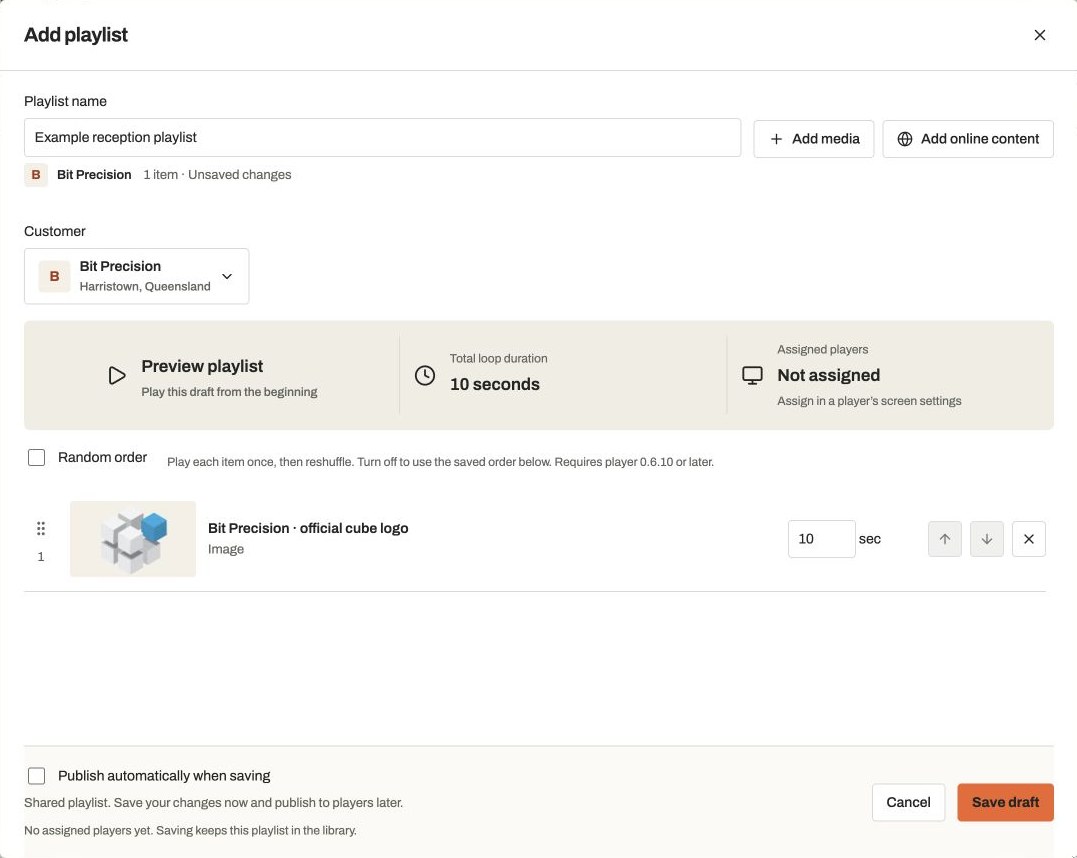 Fullscreen playlistA repeating loop fills the screen. Schedules can choose a different playlist.View guide →
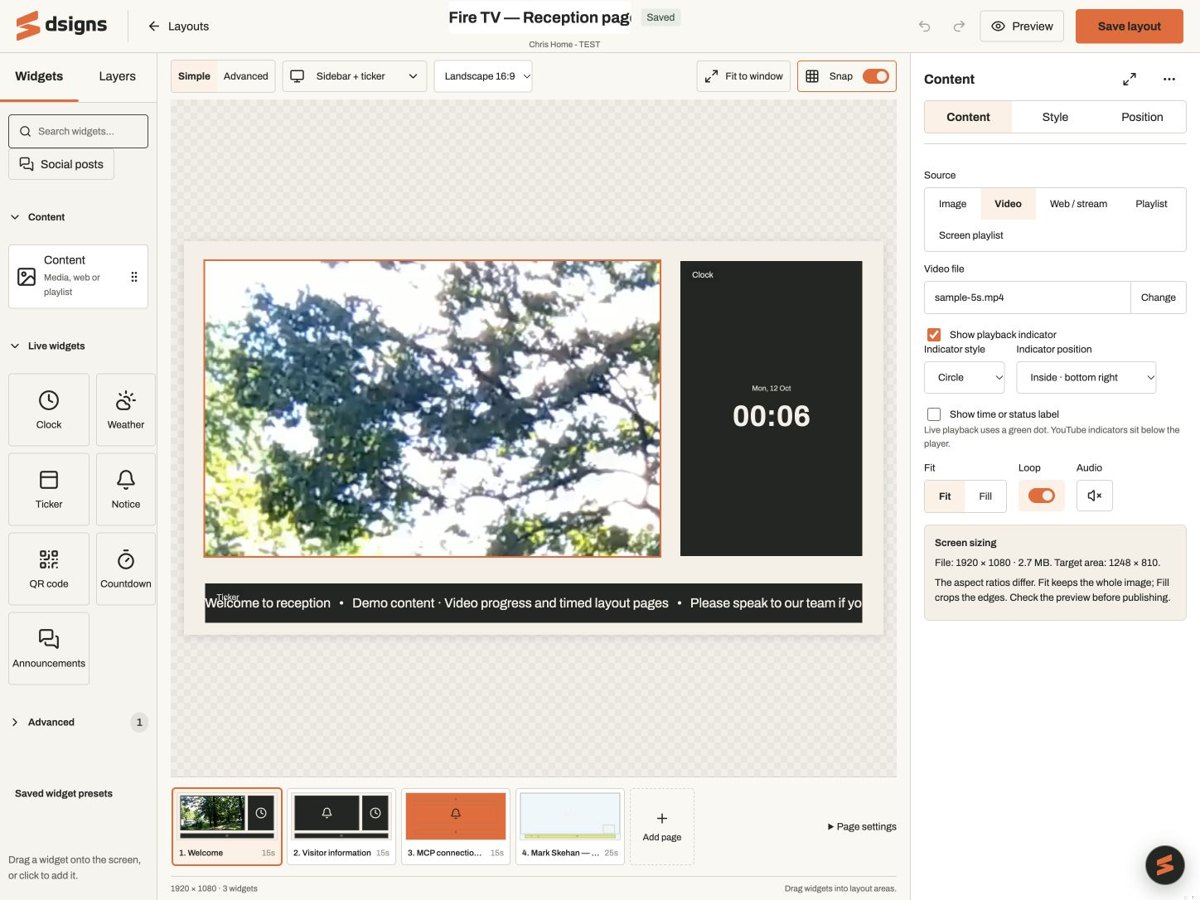 Layout with Screen playlistA scheduled playlist plays inside a region alongside your other widgets.View guide →
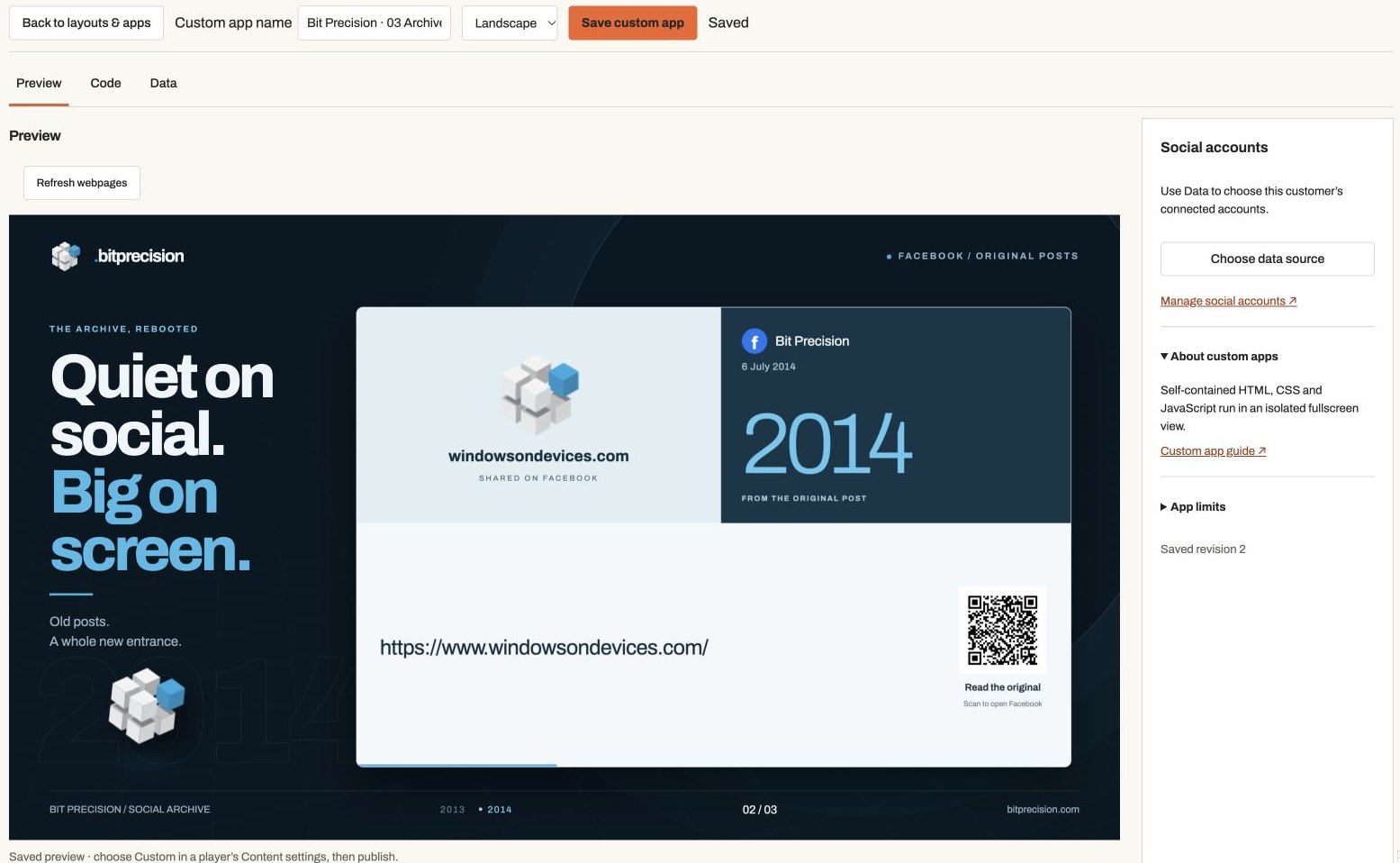 Own content or custom appWidgets and code choose their content. The normal screen schedule does not replace it.View guide →
Save your changes
Edit the playlist, screen settings or schedule and save. Saving a draft does not send it to a player.
Publish the right players
Open each affected player and choose Publish content. If a playlist is shared, decide which players should receive the update.

Actual app controlsSave first, then publish to send the changes. Follow the progress
The player may be waiting, downloading or applying the update. Up to date means the published version was acknowledged. Offline reports describe the last check-in, not the current physical screen.
Adjust the physical display if needed
Content edits and HDMI display settings are separate. If the picture is cropped, rotated or stretched, open the player’s Settings and check device setup and platform requirements. Fit preserves the picture, Fill crops it and Stretch changes its shape. Windows/Linux HDMI mode changes need physical confirmation within 90 seconds.
Check the screen
Look at the TV. Windows and Linux can also provide a dashboard screenshot, but a captured frame cannot prove the panel is powered on. Sync now asks for already-published changes; it does not publish drafts.